In this guide, you’ll learn how to properly disable the file editors in WordPress and why doing so is a smart move for your site’s security.
Why Disable the Built-in File Editors?
Here are the main reasons you should disable these editors:
-
Prevent attackers from executing malicious code if they gain access to your dashboard.
-
Avoid accidental edits that can break your site (e.g., a small mistake in
functions.phpcould cause a 500 error or white screen). -
Secure the admin panel by removing unnecessary access to core files in a live environment.
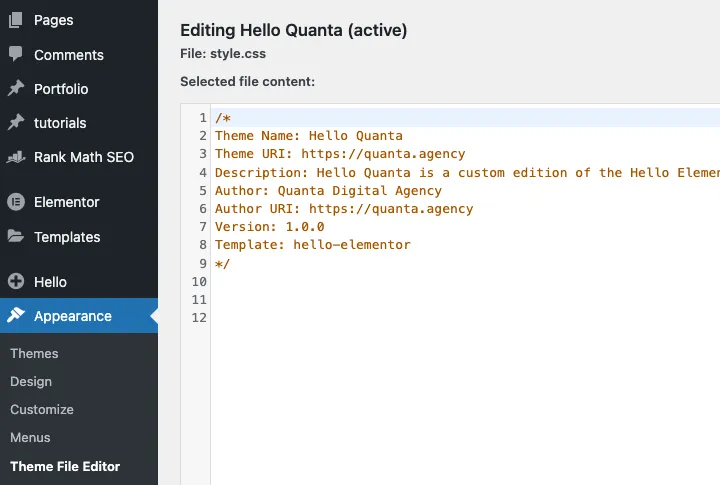
How to Disable the Editors
To disable the theme and plugin editors in WordPress, simply add the following line to your wp-config.php file:
define( 'DISALLOW_FILE_EDIT', true );Place this line above the following default comment in wp-config.php:
/* That's all, stop editing! Happy publishing. */Once this is in place, the following menu items will be removed from the dashboard:
-
Appearance → Theme File Editor
-
Plugins → Plugin File Editor
DISALLOW_FILE_EDIT vs DISALLOW_FILE_MODS
WordPress offers two constants for restricting file access. Here’s the difference:
| Constant | Function |
DISALLOW_FILE_EDIT |
Disables the built-in theme and plugin file editors. |
DISALLOW_FILE_MODS |
Disables editors and prevents installing, updating, or deleting plugins and themes via the dashboard. |
In most cases, DISALLOW_FILE_EDIT is sufficient. The second one is better suited for staging environments or enterprise-level restrictions.