1- Create a Folder for Your Protected Files
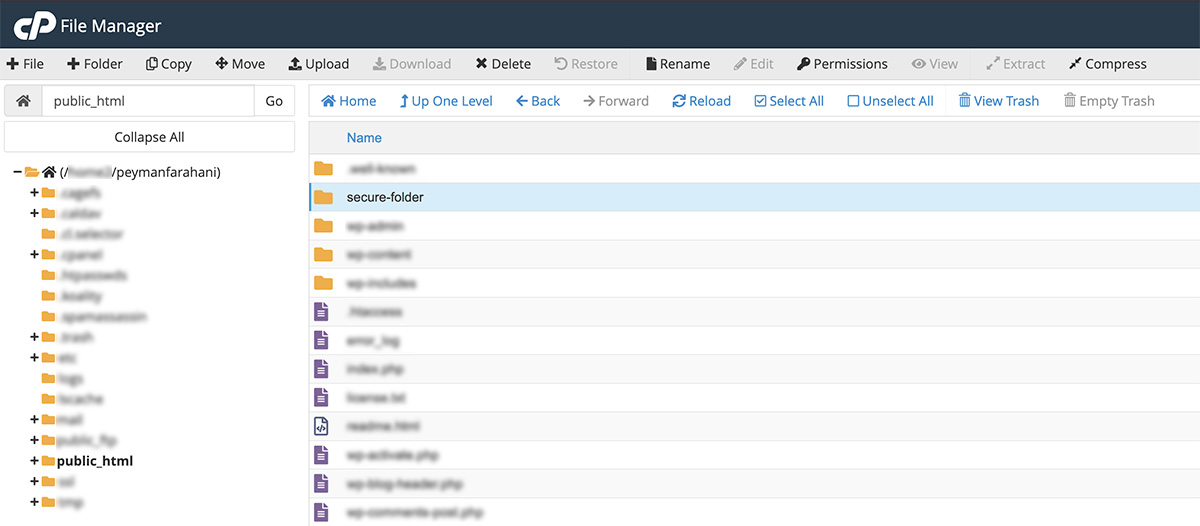
Log in to cPanel, navigate to public_html, and create a new folder (e.g. secure-folder). Upload your file (e.g. backup.zip) into that folder.
2- Create the .htaccess File Inside the Folder
Path:
public_html/secure-folder/.htaccess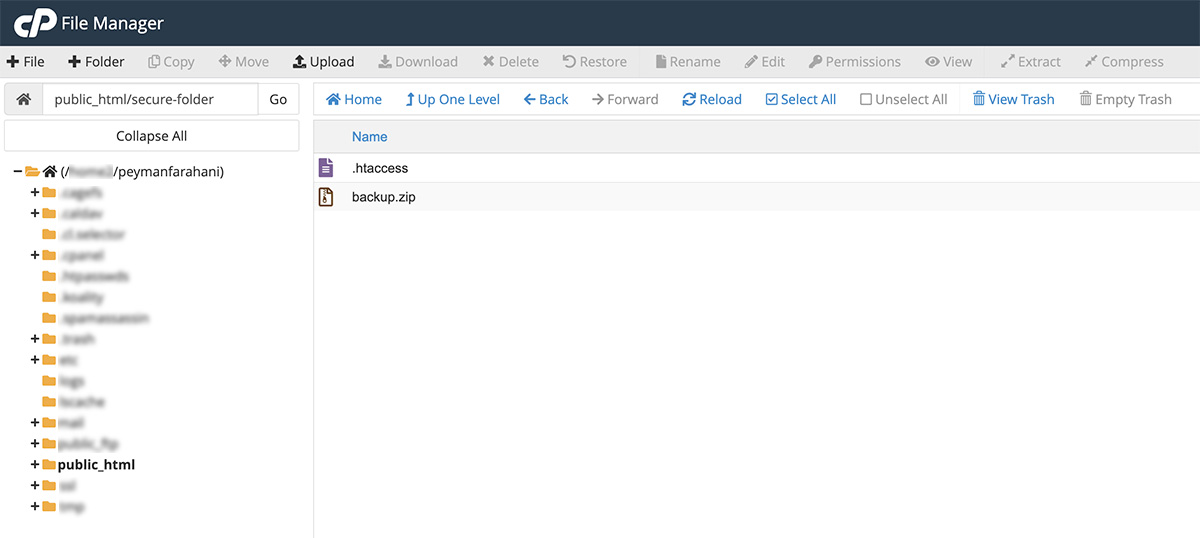
💡 Note
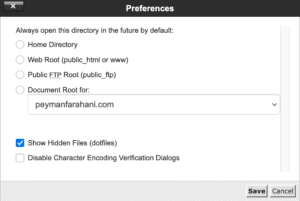
f you don’t see the
.htaccessfile in your File Manager, it’s likely hidden.
Go to Settings (top-right corner of File Manager) and make sure “Show Hidden Files (dotfiles)” is checked.
Paste the following in the .htaccess file:
AuthType Basic
AuthName "Restricted Area"
AuthUserFile /home/peymanfarahani/public_html/secure-folder/.htpasswd
Require valid-user
Note: Replace peymanfarahani with your actual cPanel username.
Note: Adjust /home/ if your server uses a different path (like /home2/)
3- Generate the .htpasswd File with Encrypted Credentials
Go to this website:
https://hostingcanada.org/htpasswd-generator/
-
Choose a username (e.g.
mybackup) -
Enter a strong password (e.g.
TrickyPass893!) - Select this encryption method: Apache specific salted MD5 (insecure but common)
You’ll get a string like this:
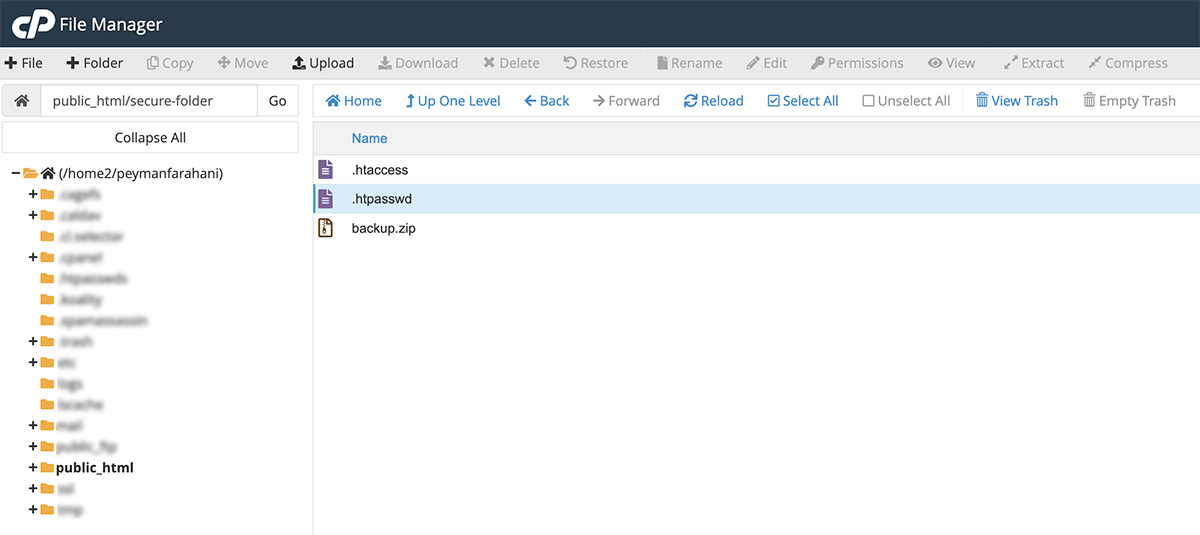
mybackup:$apr1$zwk9405d$PD5KYSRv4WJ8N9OGyLsWf0Copy it and create a file named .htpasswd inside the same folder (secure-folder):
public_html/secure-folder/.htpasswdPaste the string into the file and save.
Final Test
Now try accessing your file at:
https://peymanfarahani.com/secure-folder/backup.zip
User: mybackup
Pass: TrickyPass893!
Note: Replace peymanfarahani.com with your actual site domain.
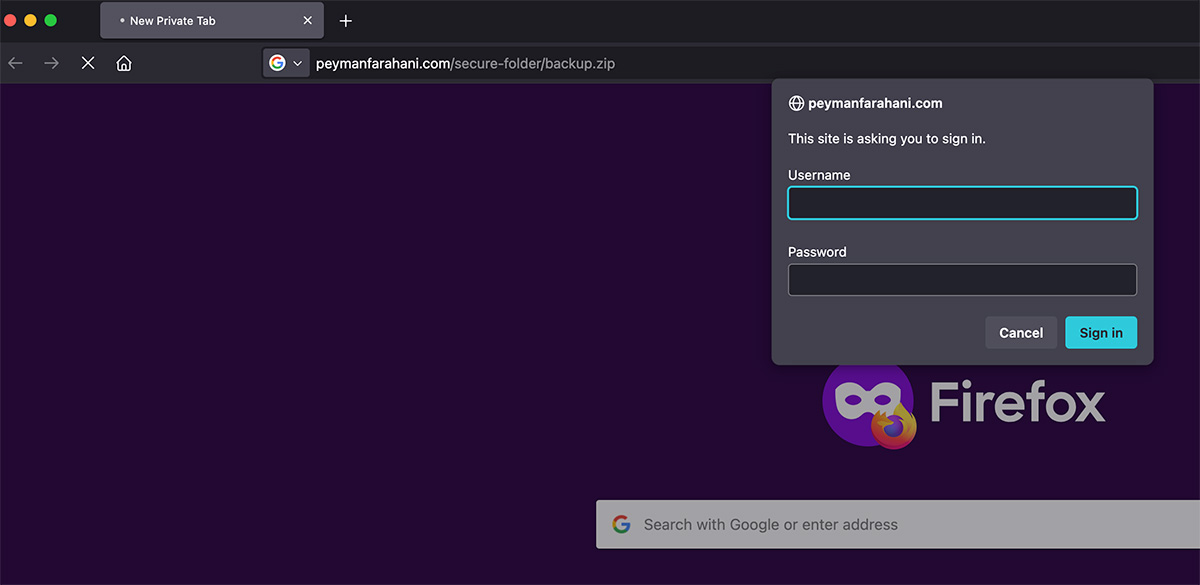
The browser should prompt for a username and password. If entered correctly, the download will start. If not, access will be denied.
🔐 Security Tip
Once the intended user has downloaded the file, delete the folder or remove the backup to prevent unwanted access.